Give your report
the useful details.
Keep the issue, screenshots and replies in one in-app support conversation.
Choose the subject
New report categories: technical issue, idea or feedback, billing, account, or other.
Show what happened
Describe the expected result and steps to reproduce; attach up to three screenshots per message.
Continue the conversation
Read replies, add details and check status in-app. Close a report or reopen it when needed.
Make the issue reproducible
Include the page you were using, the action you took, what you expected and what happened instead. Add the date, time and timezone if the issue concerns a trade, filter or calendar event. Mention whether you are using desktop web, mobile web or the mobile app, plus the browser or app version when you know it.
For account sync, include MT4 or MT5, the broker server and the visible error or connection status. For billing, include the plan, billing period and the payment date or receipt reference. Do not send sign-in passwords, broker passwords or complete payment-card details.
Keep the conversation together
If you already have an active report, the app directs you back to it. Add the new information there so earlier details and replies stay together. You can close a report and reopen it when you need to continue.
Messages accept up to three screenshots, using PNG, JPG or WebP files up to 3 MB each. Crop or cover unrelated personal details before attaching an image. A screenshot is most useful when its description explains which field, value or action to inspect.
Point to the record
you need help with.
A product screen can make a report precise.
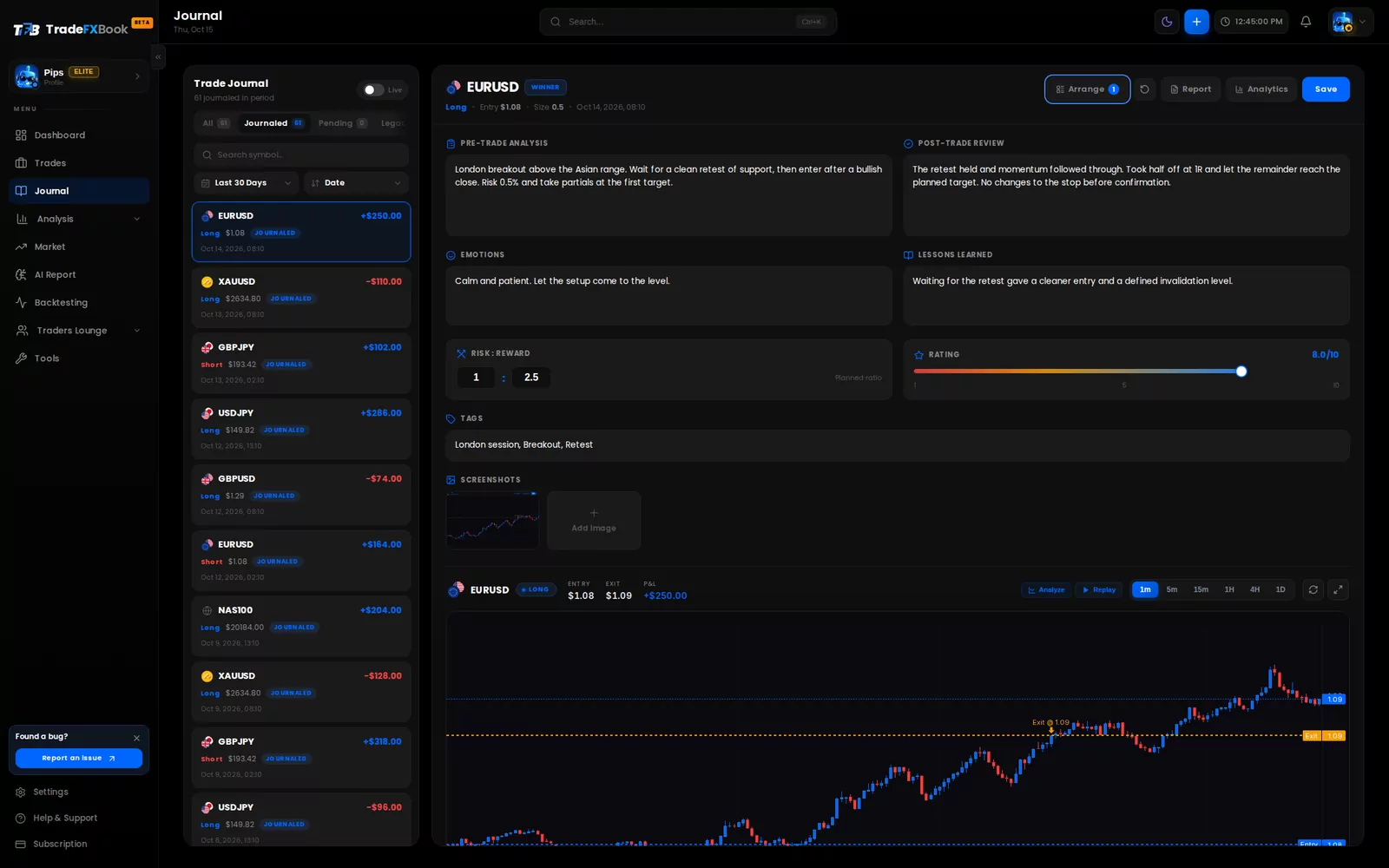
Journal issueShow the field.
Explain the result.
For a journal problem, name the trade, the affected note or screenshot, and whether saving showed an error. This screen shows the fields you can point to.
Open Help & Support ↗
 ↗
If you cannot sign in
Email support@tradefxbook.com and explain where sign-in stops. Include the email address associated with your account and the visible message. Use the same address for privacy questions or personal-data requests. The Security and data page explains the export, disconnect and deletion controls available in the app.