What an account connection needs
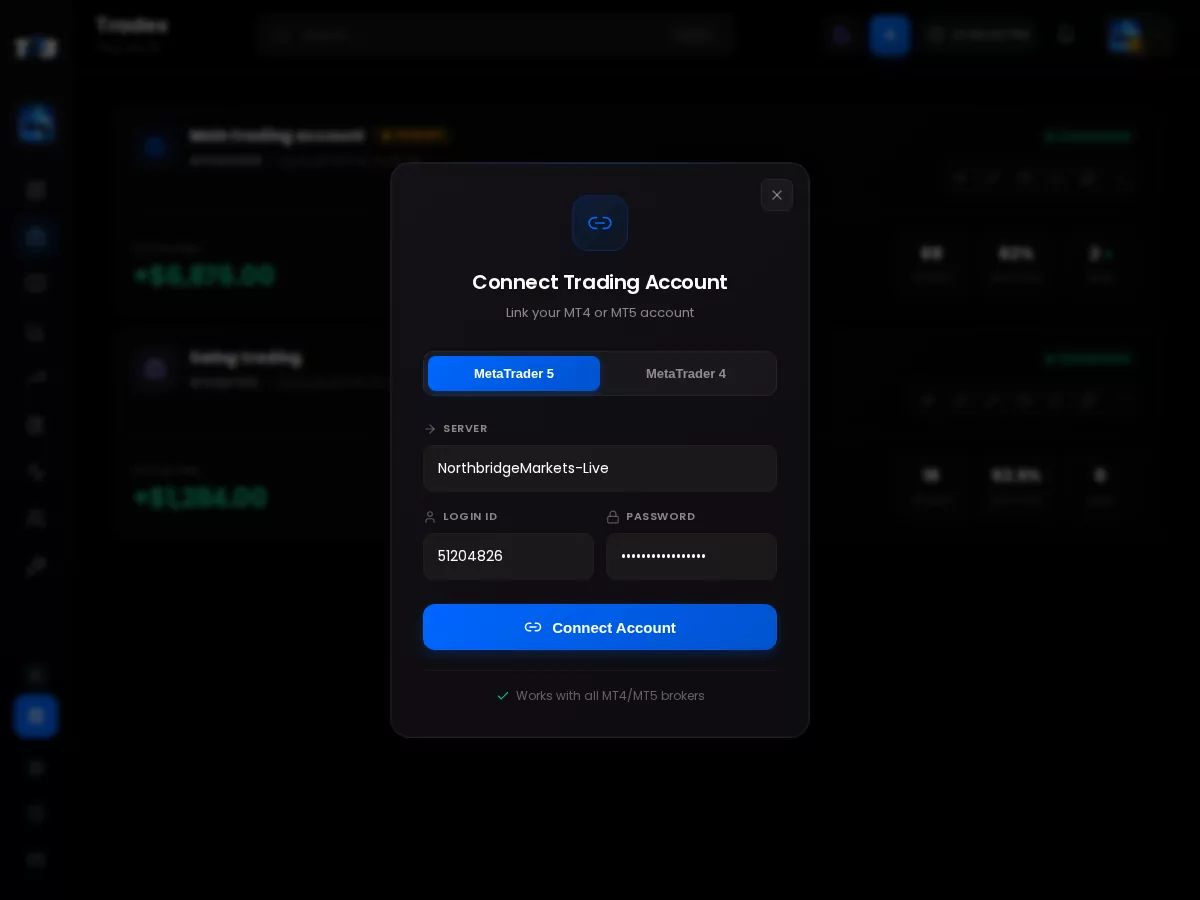
Pro and Elite connect supported MT4 and MT5 accounts, including prop firm accounts on those platforms. In Profile, open the MT5/MT4 Account Manager, choose Connect Account, select the platform and broker server, and enter the trading account login and investor password. Your TradeFXBook sign-in is separate from this broker login.
Use the broker's investor password
Investor access is read-only. It lets a connection read account information and trading history without permission to place trades. The master password is the credential used for trading. Entering a master password into a field labelled investor password does not change the permissions of that credential.
If you do not know which password you have, check with your broker before connecting. Use the investor credential in the account form. Do not enter your TradeFXBook sign-in password there or send passwords in a support report.
How saved connection credentials work
The server, account login and connection password pass through TradeFXBook's server to the external service that connects to MetaTrader. TradeFXBook encrypts saved connection passwords before storing them. Its server can decrypt those saved credentials when a connection needs to be re-established.
Encryption here protects the stored password; it does not mean only you can decrypt it. The account-list response used by the app excludes the password. The connection record also contains details such as the login, server, platform and sync status so the account can be identified and managed.
Account APIs require a signed-in identity and check that the requested account belongs to that user. Reconnection uses that account's saved details. A changed broker password or server can require you to connect again with the updated details.
Account connectionCheck the platform.
Use investor access.
The example form shows the platform, server, login and masked password fields. Confirm those details with your broker before connecting.
Read the connection guide →
 ↗
Signing in and managing sessions
Clerk handles TradeFXBook sign-in and sessions. You can create an account with an email address or Google. Your sign-in establishes which TradeFXBook records you can access; it is not a login to your broker account.
Profile's Security tab includes active-session management, password controls and two-factor settings. Review the active sessions and revoke another session when you need to remove its access. Follow the identity-verification prompts when changing sensitive settings.
If you use an email password, the password-change flow asks for the current password and the new one. Google sign-in accounts can set an email password through the available account controls. Use support if you cannot reach your account.
Disconnecting, clearing data and deleting your account
These controls have different effects. Export the records you need first, then choose the action that matches what you want to remove.
Disconnect a trading account
Use Disconnect in Profile's MT5/MT4 Account Manager to stop further sync in TradeFXBook. The app marks the connection disconnected and requests disconnection from the trading connection service. This does not close your broker account.
- Keep TradesDisconnect the account and retain its previously synced trading history.
- Delete Synced TradesDisconnect and remove that account's synced trades without journal entries, plus its performance snapshots. Trades with journal entries are preserved.
Disconnecting leaves the saved connection record, including the encrypted password, in place. It is a sync control, rather than complete credential or profile deletion. Changing the investor password with your broker is a separate step if you want to invalidate that credential.
Clear trading data while keeping your profile
In Profile's Security tab, choose Clear Trading Data and confirm. This removes trades, journal entries and performance snapshots while keeping the TradeFXBook account. A Clear All Trading Data control is also available in Settings. The operation is permanent.
Clearing trading data does not itself disconnect account sync. Disconnect first if you also want to stop connected accounts from supplying trading activity again.
Delete your TradeFXBook account
In Profile's Security tab, choose Delete Account. Read the warning, type DELETE, enter the email address on the account and confirm. The flow requires recent identity verification and can ask you to verify again before deletion starts.
The server records the deletion request, starts background cleanup and removes the Clerk sign-in account. Cleanup removes connected-account records, trades, journals, checklists, performance snapshots, backtesting records, AI reports, uploaded files and profile data. It runs in batches, so starting deletion does not mean every record disappears in the same instant.
Community message content can be replaced with a deleted-user marker to preserve conversation context. A deletion record remains to prevent the removed sign-in identity from recreating the profile. Read the Privacy Policy for retention exceptions. If the app reports a failure, follow its retry instructions or contact support.
Export the records you want to keep
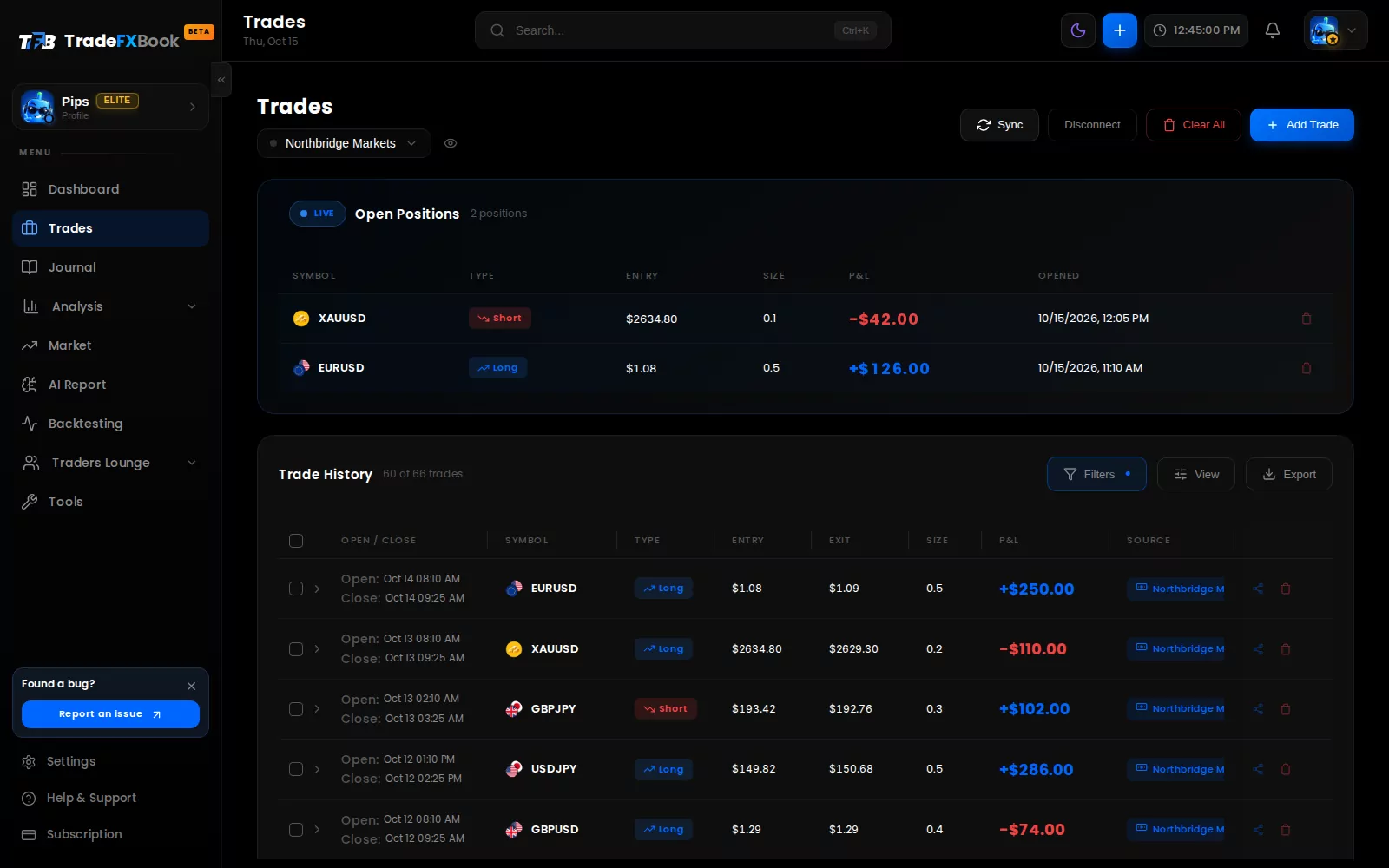
Trade history offers CSV and Excel export. On desktop, the export follows the current filters, sort and visible columns; selected rows can be exported separately. Check the date range and account filter so the file contains the intended records.
Profile's Security tab also has Export Data for a trade CSV. It prepares the available trade history before creating the file. The CSV contains trade fields such as symbol, direction, prices, quantity, P&L, swap, commission, dates, source, order type and trade notes.
Save journal reviews separately
For an individual journal entry, save your edits, then use Report in the desktop journal to generate its PDF. A trade-table export and a journal PDF contain different parts of the record. Neither is a complete archive of every account setting, conversation and uploaded file.
Trade historyChoose the records.
Then export.
Use the account, date and table filters to choose the trade records you need. This view shows the table you export from.
Explore the journal →
 ↗
For privacy questions or a personal-data request, email support@tradefxbook.com. Never include broker or sign-in passwords.