
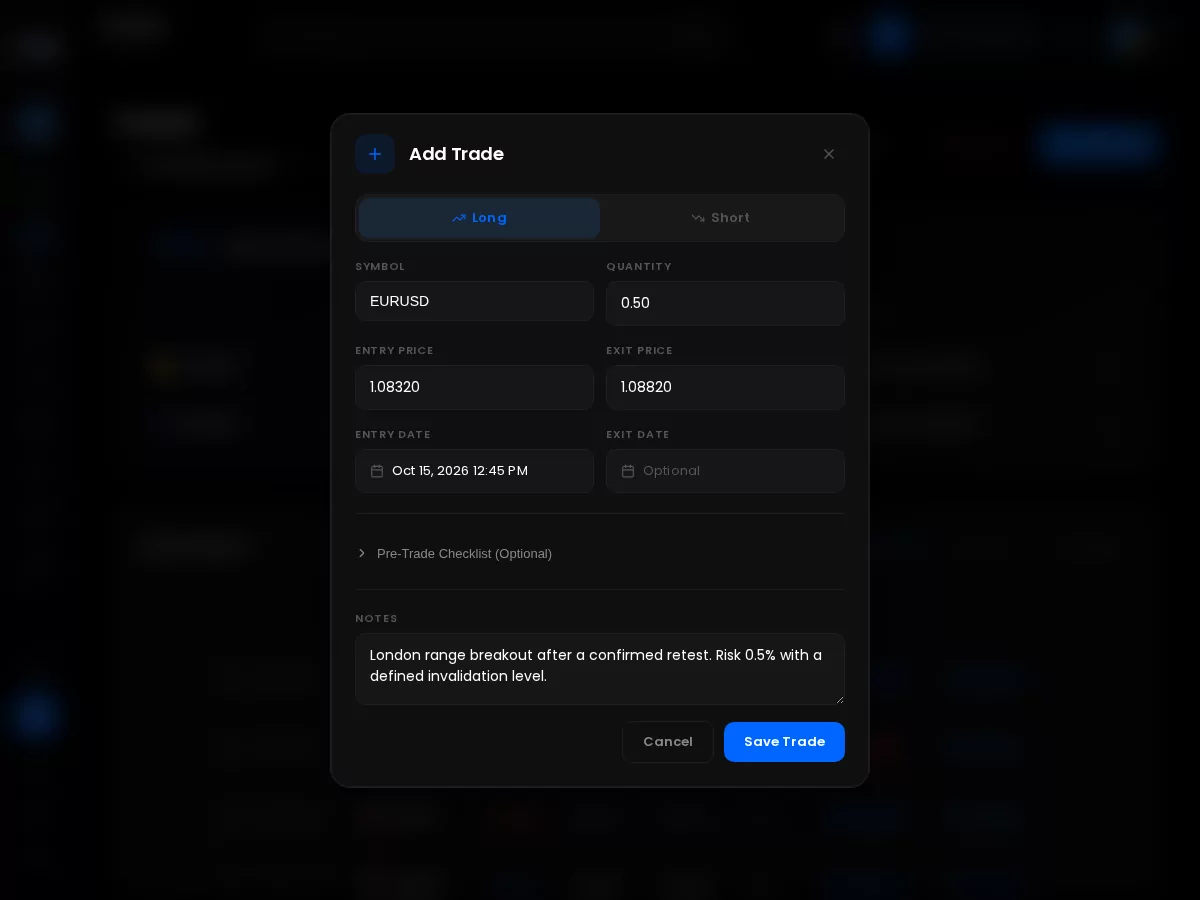
Start a manual record
The example Add Trade form shows the fields used to record a trade before adding its journal review.
Frequently asked questions
Getting started, connecting accounts and knowing what your plan includes. Find the details here.
TradeFXBook is a trading journal and analytics platform for forex, commodities and indices traders. Record trades, add a plan, notes and screenshots, then compare decisions with the results. Analysis includes performance statistics and breakdowns by symbol, session and day.
You can start with manual entry on Free. Pro and Elite add connected MT4/MT5 history, and Elite includes historical replay with simulated trades. Read how the product fits a review routine.
Sign up with your email address or Google account and follow the verification prompts. Clerk handles sign-in and sessions. You must be at least 18 to use TradeFXBook.
Your TradeFXBook account and broker account are separate. Creating a journal does not require you to supply broker credentials; you can begin by adding a trade manually.
Yes. Free includes manual entry for 15 trades per month, your latest 15 trades in history, journal notes, 3 custom tags and analytics timeframes up to 1 month. Open Add Trade to record the symbol, direction, quantity, prices and trade times.
Keep the trade's account and timezone clear, then add the plan and review in the journal. The journaling guide includes a worked EURUSD record. Auto-sync requires Pro or Elite.
Pre-trade and post-trade notes, emotions, lessons, tags, risk:reward, a rating, checklist items and screenshots. The entry stays linked to its trade.
Use pre-trade notes for the original trigger, stop and risk assumptions. Use the review for what actually happened and what you would repeat or change. Save the entry before leaving or generating its journal report.
Pro and Elite support MT4 and MT5 auto-sync, including prop firm accounts on MetaTrader. MetaTrader compatibility depends on your broker and server. See integrations for the connection options.
Open Profile, then the MT5/MT4 Account Manager, and choose Connect Account. Select MT4 or MT5 and the broker server, then enter the trading account login and investor password. Prop firm accounts on MetaTrader use this same flow.
Use the broker's read-only investor credential, rather than the master trading password. Saved connection passwords are encrypted and can be used by the server for reconnection. Read Security and data before connecting.
Pro includes up to 3 connected MT4/MT5 accounts. Elite includes unlimited MT4/MT5 accounts. Free uses manual trade entry and does not include account auto-sync.
Check that you selected the correct MT4 or MT5 platform and the exact broker server. Confirm the account login and investor password with your broker, especially if either has changed. Check whether the account has trading history and note the status or error shown in the Account Manager.
Compatibility and connection availability depend on the broker and server. If the issue continues, send an in-app Help & Support report with the platform, server, affected period and visible error. Include the timezone for missing trades. Never send passwords in the report.
Yes. Use Disconnect in the MT5/MT4 Account Manager to stop further sync. Choose Keep Trades to retain synced history, or Delete Synced Trades to remove that account's synced trades without journal entries and its performance snapshots. Trades with journal entries are preserved by that deletion option.
Disconnecting leaves the saved connection record in place and does not close the broker account. Clearing all trading data and deleting your TradeFXBook profile are separate controls. Read the full explanation of these actions before removing data.
Free is $0. Pro is $12.99 per month or $128.99 per year. Elite is $22.99 per month or $238.99 per year. Annual prices are billed yearly. See the full plan comparison.
Unlimited trades and history, up to 3 MT4/MT5 accounts with auto-sync, prop firm accounts on MT4/MT5, unlimited tags, all analytics timeframes, 1 AI report per account per week, full economic calendar filters, community chat and trade rooms.
Unlimited MT4/MT5 accounts, backtesting with unlimited sessions, up to 50 saved backtest strategies and AI economic event analysis.
Yes. Open Profile, then Billing, and use Manage Billing for the paid subscription's billing controls. Cancel before the renewal date to stop the next renewal. Paid access continues to the end of the current billing period, then the account returns to Free.
Check the cancellation confirmation and access-until date. Returning to Free restores its limits, including the latest 15 trades in history and no connected-account auto-sync. Export any records you want to keep before making data changes. For a billing problem, contact support.
The Terms of Service state that partial billing periods are not refunded. If you need help with a payment, contact support@tradefxbook.com.
Replay historical markets, place simulated market and pending orders, set stop loss and take profit, and journal the practice trades. Session reports let you review the results. Elite includes unlimited backtesting sessions and up to 50 saved backtest strategies.
These are simulated orders in historical replay. Results depend on the data and execution assumptions, and do not establish future profitability. The backtesting guide explains rule definitions, costs and unseen data.
Pro and Elite each include one report per trading account per week. Reports review performance, recurring patterns, blind spots and rule violations, with an action plan to structure your review.
The report is based on the trading and journal information supplied for analysis. Check its observations against the underlying trades and notes. AI economic event analysis is a separate Elite feature.
AI economic event analysis is included with Elite. Pro includes full economic calendar filters. Free shows today's US high and medium impact events.
No. AI-generated reports are for information and education. They do not predict future results or constitute financial advice. AI features are optional.
Treat a report as another set of observations to check against your records. Keep your own risk limits and decision process; an AI assessment does not validate a strategy or guarantee an outcome.
You retain ownership of the journal entries, notes and tags you create. Content you choose to share through community features is covered by the sharing license in the Terms of Service.
No. The Privacy Policy explains the service providers that process data to run TradeFXBook, and what other users can see when you choose to share content.
Requests may include trading results, strategy details and journal text needed for the report. Requests are routed through OpenRouter to the selected model provider and are subject to those providers' processing and retention terms. Avoid adding unnecessary personal information to content sent for analysis.
Trade history exports to CSV or Excel using the current filters, sort and, on desktop, visible columns. Selected rows can be exported separately. Profile's Security tab also has Export Data for a trade CSV.
For an individual journal review, save the entry and use Report in the desktop journal to generate a PDF. Table exports and journal PDFs contain different parts of the record, rather than a complete account archive. For a personal-data request, email support@tradefxbook.com.
Yes. In Profile's Security tab, choose Delete Account, read the warning, type DELETE and enter the account email. The flow requires recent identity verification. It records the deletion request, starts background data cleanup and removes the sign-in account.
Cleanup removes connected-account records, trading data, journals and other profile records in batches. Community content can be anonymized, and retention exceptions apply as explained in the Privacy Policy. Export what you need first. See Security and data for the difference between deletion, disconnecting and clearing trades.
Use an in-app report or email support@tradefxbook.com.