
Connect account
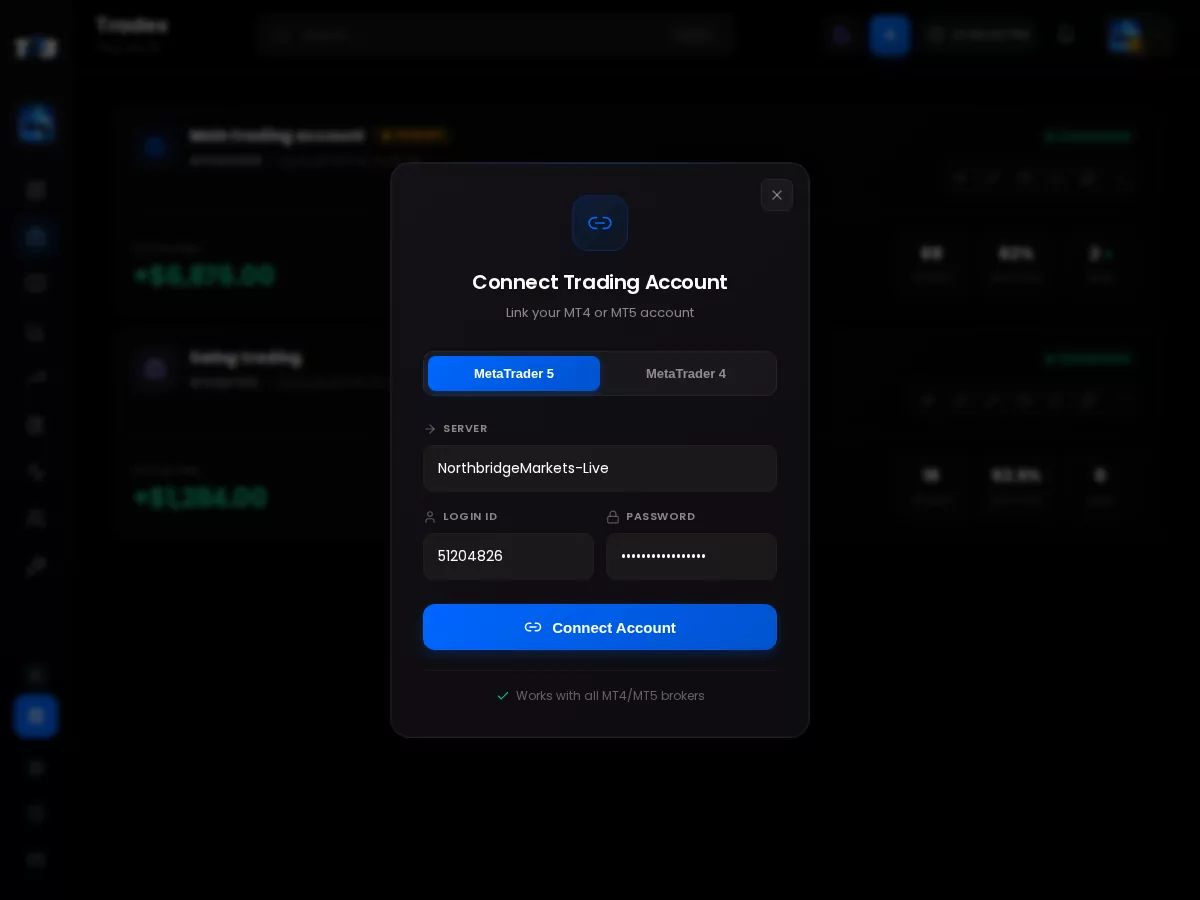
Choose MT5.
Choose MT5.
Find the server.
Use the platform, exact server name, login ID and investor password for your account.
Integrations / MetaTrader 5
Sync open positions and closed trades into TradeFXBook. Keep the execution details together, then add the context in your journal.
MT5 auto-sync is included with Pro and Elite.
Use the platform, exact server name, login ID and investor password for your account.
Go to Profile, then Accounts, and select Connect Account. Choose MetaTrader 5 as the platform.
Search for your broker or server name. Select the server that matches your MT5 account.
Add your account login ID and investor password. Select Connect Account to start importing your trades.
Review open positions and closed history with symbols, direction, size, entry and exit prices and times, profit, commission and swap.
Review your performance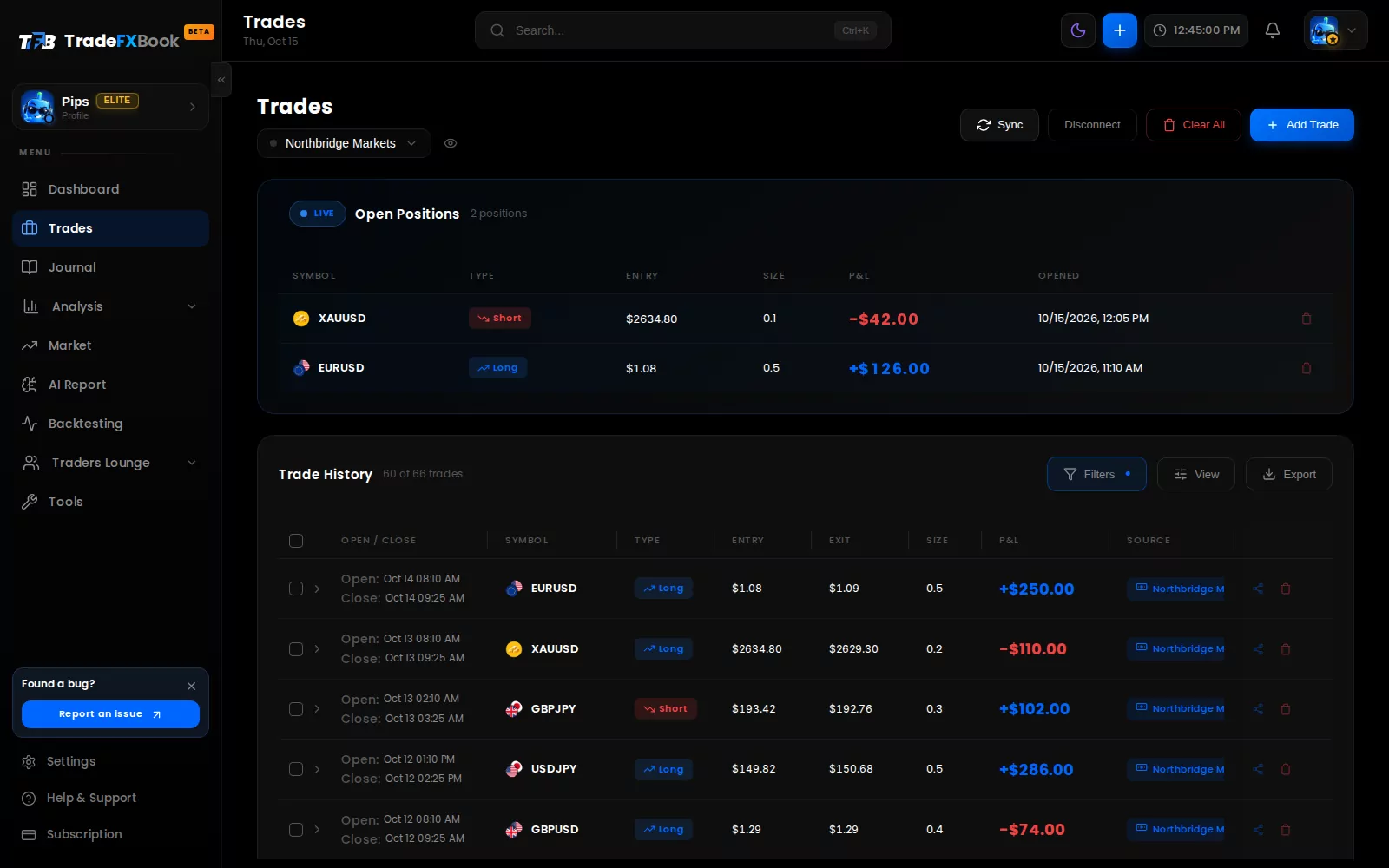
15trades
Free: manual entry each month, with the latest 15 trades in history.
3accounts
Pro: MT4/MT5 auto-sync in total, with unlimited trade history.
Elite
Unlimited MT4/MT5 auto-sync and historical backtesting.
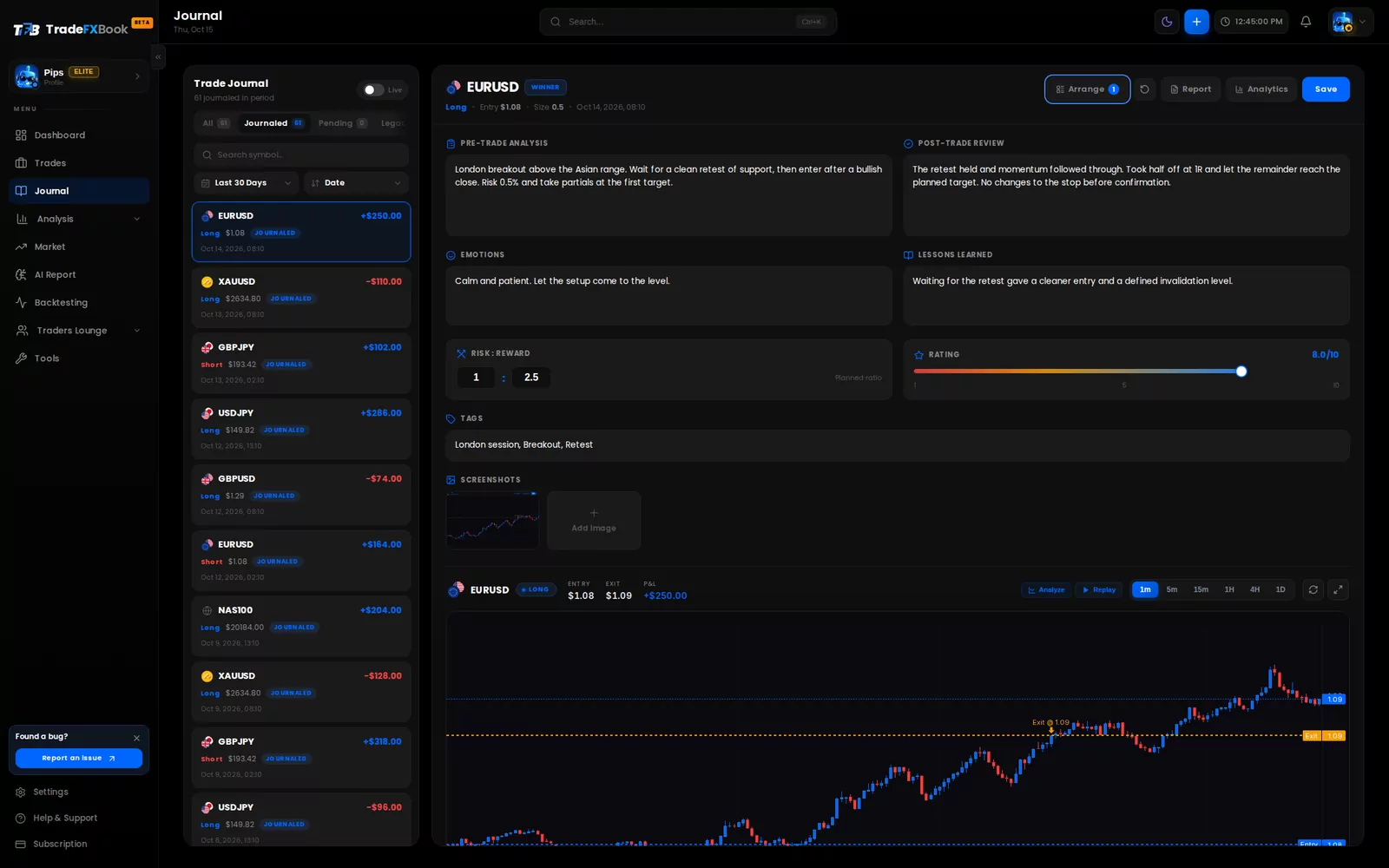
Keep the execution details together, then add the context in your journal.
Explore the trading journalOpen positions can appear while full history is still being prepared.
The exact broker server name, login ID and investor password. Choose MT5 in the form before searching for the server.
Your account can connect before full history preparation finishes. Open positions can be ready first. The remaining history appears when the broker has prepared it.
Yes. Use Export in the trade history to download an Excel workbook or CSV file. You can filter the history or select individual rows before exporting.
Connect your MT5 account with Pro or Elite.